Saturday, October 29, 2011

Dropbox for Teams Offers a Terabyte of Space, Centralized Billing


If you have a crowd of people collaborating with large files synchronized by Dropbox, you might be interested in this new offering from the online file synchronization service, called Dropbox for Teams.

It works the same way as the regular Dropbox service, where if you put files into a Dropbox folder on one computer, they immediately begin to synch up on all the other computers where you have the Dropbox application installed. It’s great for backing up files, collaborating, version control — and you can do some cool tricks with it, too.

The difference is, this $795-per-year Dropbox for Teams service gives five users shared use of a terabyte of storage. If you have more than five users, get the boss to chip in an additional $125 per year for each, and each one of those users gets 200 more gigabytes of space.

Even though it seems quite expensive at $795 a year, there’s an important distinction here. A conventional Dropbox account is free if you’re not going to use more than 2 GB, but if you’re sharing large files as much we do here at Mashable (such as HD video production clips), you’ll be needing a whole lot more than that.

The problem is, each person needs a Dropbox account that’s big enough to accommodate all the files you’ll be synchronizing among your team. So if I have, say, a “Pro 50″ Dropbox account that can accommodate 50 GB (that costs $99/year or $9.99 per month), that’s not going to do me much good to collaborate with my pals if all of them can only accommodate 2 GB.

Beyond that, Dropbox for Teams solves that problem of who pays for all of this by using centralized billing, making it easy to pass the bill over to the boss. And the IT suits can manage everything from one centralized dashboard, controlling who shares what with whom. They like it like that. Another nice kicker is the free unlimited version history, a feature that lets you bring files back from the dead — that one’s saved our bacon quite a few times.

What’s the downside? Well, if you’re worried about putting your business’s sensitive files in the cloud, Dropbox is probably not for you. And, last summer a Dropbox bug briefly exposed user accounts, making it so bad guys could have possibly broken into your private data without needing a password. Even though it affected less than 1% of users and only lasted 5 minutes, such breaches are disconcerting.

Keeping that in mind, if you collaborate with large files, this veritable cornfield of extra space might be a good investment.

Nokia CEO Sees “Broader Opportunity” With Windows 8, Hints At Tablets


In a brief interview with This Is My Next, Nokia CEO (and mole for Microsoft, clearly) Stephen Elop hinted strongly at the potential for a Nokia-built Windows 8 tablet. While his statement was, strictly speaking, more of a dodge, it’s clear that this is something they’re at least thinking about.

When asked about its role as a consumer electronics brand, Elop explained:

"The user experience of Windows 8 is essentially a supercharged version of the Nokia Lumia experience that you saw on stage today. And you see the parallels and opportunity for commonality from a user perspective. You say wow, this is more than just smartphones, there’s a broader opportunity here. And clearly we see that broader opportunity as well, without specifically commenting on what that may mean in the future. "

The topic of the conversation was largely the idea of a strongly-branded, unified user experience, which Elop feels Android doesn’t offer and Windows Phone 7 does (the iPhone didn’t come up, though it would probably fall under the unified category). So when he says Windows 8 is a supercharged Lumia experience, what he is suggesting is that the Windows 8 tablet experience is one catering to its exact use scenario, being less generalist and indeed less customizable than, say, Android.

He also mentioned the importance of HTML5, and noted that the Lumia series was just part of a larger portfolio of devices and launches they’ll be doing through early 2012. I’m looking forward to it — they seem to be onto something with their new designs and with luck they’ll be able to turn that into market share. As for Windows 8, there’s still plenty of time for that situation to evolve, so let’s not speculate too broadly.

Thursday, October 27, 2011

How to Get a Siri-Like Personal Assistant on Your Android Phone for Free

If you watched iPhone 4S announcement with your Android phone and went a little green with envy when Siri, iOS's new voice-recognizing personal assistant, was announced and demoed on stage, buck up. You've got a lot of great voice recognition apps to choose from on Android that can help you keep up with friends, look up the weather, find local businesses, and more. Here are a look at your options.

If you haven't looked into voice recognition apps on Android before, you may be surprised at how many applications get the job done. None of the apps currently available for Android are quite as well integrated with the OS as Siri is be with iOS (sorry), but some of them come closer than others, and you can bet that all of them will be updated and improved now that Siri is available for iOS. Best of all, they're all free.

The One You Already Have: Google Voice Actions


If you have an Android phone, you already have Google Voice Actions for Android installed. When everyone got their first look at Siri on the iPhone 4S, most people jumped to the assumption that Siri was just Voice Actions for iOS. That's not true—Siri does more than Voie Actions, but Voice Actions is the closest thing Android users to a voice-operated personal assistant.

Pros: Voice Actions can control a large swath of Android functions. You can place phone calls, listen to music by track name, artist, or album, send SMS or email messages, get driving and turn-by-turn navigation directions, search the web, and more. If you're clever, you can get information like weather, word definitions, maps and information about local businesses, and more just by using voice actions intelligently. For example, tap the Voice Actions icon and speak "weather in Washington, DC," Voice Search will do a Google search for it, and Google's mobile page will give you an interactive display of the weather forecast.

Cons: The trouble with Voice Actions is that it's only well integrated with core Android functions. You won't be able to schedule calendar appointments, schedule appointments with other people, update Twitter or Facebook, or issue complex commands that require passing information to any application other than Google Search. Additionally, you need to actually tap the Voice Search icon (or long-press the search key) every time you want to issue a request, which makes it less than ideal for hands-free situations, like when you're driving. Finally, Voice Search is a simple command-response application, as in, you speak a command and it replies with whatever it has. If it's wrong, you reissue the command by starting over. There's no back-and-forth with Voice Actions.

The Most Hands-Free: Vlingo


Vlingo has been around for a long time, much longer than voice control has been in-style on smartphones. Vlingo has text-to-speech and speech-to-speech clients for iOS, Android, BlackBerry, Nokia, and Windows Mobile, ans while none of them have particularly deep integration with their respective operating system, the app does reach beyond core applications and comes closest to the kind of black-and-forth with advanced commands that Siri offers.

Pros: Vlingo allows you to do all of the basics: you can send SMS messages and emails, place phone calls, and search the web. You can also search for local businesses and restaurants using natural language, so saying "find pizza" will search for local pizza delivery restaurants. Saying "taxi" will search for the nearest cab company. You can also launch applications through Vlingo by speaking their name, or update Facebook and Twitter through the app. It's speech-to-text engine is good, and unlike Voice Actions, it rarely misinterpreted my contact names or spoken words.

The developers behind Vlingo have even tossed in some tie-ins to other applications: if you say "find hotels in New York City," the app will ask you if you want to install Kayak or if you just want to search the web. Say "Buy movie tickets for Real Steel in Washington DC," the app will open your default browser, go to Fandango, bring up the page for Real Steel, and offer me showtimes at nearby theaters.

Finally, Vlingo's strongest suit is that you can tell it to start listening as soon as you open the app, and when you enter Vlingo's "in-car" mode, you can say "Hey Vlingo," out loud and the app will accept commands. It's Vlingo's depth of features and its ability to have a back-and-forth conversation with you that make it the closest thing Android users have to Siri. Check out this video to see Vlingo in action.

Cons: The only real problem with Vlingo is that too many of its commands shunt you to other applications that have no voice-activated features. When you're using "in-car" mode, Vlingo will ask you if you want to leave Vlingo to open your browser or another app to complete the action, but it doesn't let you say yes or no from that screen, and you have to touch the screen to either go forward or cancel the operation. The same is true for a number of Vlingo's other features as well. Saying "Check in to China Garden" simply opens Foursquare and does a search for China Garden, which saves time, but falls just a little short.

Also, if you stray too far from any of Vlingo's known search and command terms, you'll confuse it and it'll shunt you to a web search. That's fine in some cases, but the fact that you can't just ask what the weather is without doing a Google search is a little disappointing. Vlingo is great, but the most frustrating thing about the app is that it seems to go so far, only to stop short of perfection.

The Most Conversational: Edwin


Edwin is a utility and while it's lacking the bells and whistles of its competition, it adds voice response and speech-to-speech to Google's native voice actions. It also allows you to make your voice commands a bit more conversational. Most of its commands are passed through to Google Voice Actions, where they're executed or the results are spoken back to you.

Pros: Edwin's strength is in how conversational the app is. If it has a direct response, it'll speak it out loud. Ask "What's the weather in Washington DC," and the app will respond aloud with current conditions. Ask about another city, and the app will look it up and respond there as well. You can even ask the app "Where am I," and it'll respond, right down to your block number. The app has a large button you press once to make the app start listening. Best of all, if it understands, it'll respond. If the app needs to do a web search or open an application, it'll prompt you to select an app, or it'll go to the browser and perform a search.

Cons: The big problem with Edwin is that it doesn't have a rich command list of its own, and when it doesn't understand something, it suffers the same problem Voice Actions does: it just fails. The app also has a difficult time processing some commands, like navigation and SMS messages—it'll understand that you want to navigate, and it'll understand that you want to send an SMS message, but it won't pick up where you want to go or who you want to send the message to. The app definitely needs some improvements, and when testing it, I ran into a number of bugs and errors. In some cases, Edwin forgot my location and couldn't retrieve weather information, and in others it stopped being able to obtain weather information entirely. Your mileage with Edwin may vary, but at the very least it'll talk back to you.


The Most Flexible: SpeakToIt Assistant


SpeakToIt Assistant is a relatively new speech-to-speech and speech-to-text assistant in the Android market. The app prides itself on being customizable, and on giving you a cartoon avatar that you can customize and configure to be your personal assistant. (If you don't like the default sexy librarian, you've got an absurd amount of options for customizing your assistant with a range of other fantasy cartoon options.) The app does have some back-and-forth conversational abilities, and it definitely recognizes a wide array of phrases and commands. The developers behind SpeakToIt claim that it's always learning, and they're working to give the app more commands that it can directly respond to with each update.

Pros: SpeakToIt definitely understands everything that Voice Actions understands and then some. You can ask it to find stock information for you, what the weather is in a far-off place, to send an email or SMS, update your social networks, check-in to a location on Foursquare, and more. The app can also post items to your Evernote account, and it greets you—sometimes with your name after you've said it aloud—when you open the application.

Unlike some of the other applications, you can make your assistant male or female, customize their appearance, and change their voice, albeit slightly. It wins for being the most customizable, and the app with the largest library of in-app commands and pass-through terms. It's clear that the developers of SpeakToIt want you to be able to get as much information as possible inside the app before being shunted to another application or to a Google search. It can even update Facebook and Twitter on your behalf. Check out this video to see SpeakToIt Assistant in action.

Cons: Unfortunately, SpeakToIt Assistant tries very hard to be a personal assistant on the surface that some of the finer touches are lost. SpeakToIt's chosen voice is the default Android voice synthesizer, making it sound more stilted and unnatural than the others, especially when it's trying to hold a conversation with you. Grammar errors in the on-screen text make it difficult to work with at times, and the fact that you have to tap a small microphone button on-screen every time you want to speak to the application difficult to use when driving or if you want a hands-free experience.

Still, SpeakToIt Assistant is in beta, and most of its shortcomings can be easily overcome with additional development. Given that development, the app could grow to be more useful. As it is, it's a touch gimmicky.


So Which Is the Best?

If we could only suggest one, Vlingo is definitely the most mature application with its hooks into the most services. It's also the one under the most active development, and the one with the best hands-free and speech-to-speech functionality. However, its competition is hot on its heels.

Google's own Voice Actions is built-in to every Android phone, and its unlikely that Google has any intention of holding still now that Siri will be deeply integrated with iOS. Similarly, SpeakToIt Assistant may be new and still rough around the edges, but it has a lot of potential and it gives you a very personable and customizable caricature to interact with.

The good news for Android users watching Siri's development is that there are plenty of alternatives and options that bring the promise of text-to-speech and speech-to-speech to Android devices. None of them are perfect, and they're not deeply integrated with all of the common features and functions that you would expect from a real voice-activated assistant. Still, there are plenty solid options to give Siri a run for its money, and expect them all to improve very shortly.

Flex it, baby! Nokia's new interface is seriously twisted


At the Nokia World show here, the Finnish mobile phone maker showed off its "Nokia kinetic device" with a flexible display. Gripped with two hands, it would scroll through music collections or photo albums when twisted. Bowing it inward or outward zoomed photos in and out or paused and played music, while tapping the corners panned through photos.

While it was a real computing device with a real OLED display, it's most definitely not a real product anyone could buy today. More firmly in the prototype category was a related flexible device that looked like a slim remote control; it could be controlled with a single hand.


Tapani Jokinen, who began working on the technology about two years ago as part of a Nokia group tasked with creating designs out of earlier-stage research, wouldn't say either when he thinks it'll come to market or how it worked.

But Chris Bower, stationed nearby at Nokia's "Future Lounge," had some ideas. He was showing an experimental apparatus with a bundle of carbon nanotubes in a flexible elastomer medium. The electrical resistance of the nanotubes changes as they're stretched, and measurements of the change let a computer control how a map zoomed in and out. The same approach could be used to control the flexible interface.


Jokinen was reluctant to predict whether it might become as widespread as multitouch user interfaces are today.

Sunday, August 7, 2011

Nokia Mobile Internet Toolkit 4.1


Nokia Mobile Internet Toolkit facilitates the creation of different mobile media content via a comprehensive set of editors and wizards. These include Web page creation (editors for creating WML, XHTML, and CSS content), MMS creation (editors for creating MMS with SMIL messages) and Push message creation (editors for creating multipart and SI/SL messages).

New in this version are fully integrated DRM and DD editors. Also new is support for SMIL 2.0 Basic Language and 3GPP SMIL transitions in MMS messages.

Additionally, NMIT now allows users to define a working environment that allows NMIT to be restarted in the same state which is was closed.

The patch release for NMIT 4.1 enables to use NMIT 4.1 with JRE 1.5. Download and install the patch on top of NMIT 4.1

Datasheet for more details 
Download a datasheet of Nokia Mobile Internet Toolkit for full details.

Nokia Mobile Browser Simulator 4.0 
This package installs the Nokia Mobile Browser Simulator 4.0 (NMB 4.0). NMB 4.0 is a mobile Internet browser SDK that can browse mobile Internet content such as XHTML, WML, and WAP Push messages from the Internet or from the local file system.

Nokia WAP Gateway Simulator 4.0 
This package contains Nokia WAP Gateway Simulator 4.0 (NWGS 4.0) and Nokia Update Manager 1.1 (NUM 1.1). NWGS 4.0 is a single-user WAP Gateway Simulator enabling phone SDKs to access the mobile Internet without a connection to a live WAP gateway.


Thursday, June 9, 2011

iOS 5 Jailbroken


Turns out the folks over at the iPhone Dev Team didn’t waste any time after Apple released the developer version of iOS 5 yesterday – as you can see, iOS 5 has been jailbroken. Apparently, Apple hasn’t done much by way of patching up those holes that were used to jailbreak iOS devices. One developer, “iOS 5 jailbroken: via limera1n + tethered boot..not too many surprises :),” and threw in some pics (shown above) of Cydia and iSSH displayed on the home screen of a 4th-generation iPod touch.
Cydia and iSSH are both apps that only run on jailbroken iOS devices. So far, we’re hearing that the only way to fix the current iOS exploit is a hardware update, which means you’ll get to enjoy all the freedom of a jailbroken iDevice until the next-gen iPhone and iPod touch see the light of day.

Microsoft Planning Own-Brand Windows 8 Tablet


The rumor mill is working double time this morning, as reported that Microsoft is prepping its own brand of Windows 8 tablets, with a little help from Texas Instruments (TI) and a number of different Taiwanese OEMs/ODMs. Of course, just a few weeks ago unnamed WSJ sources claimed that Microsoft had plans to pair five chip makers with five OEMs and then slap Windows 8 on five different tablets, so there’s no way to be sure about either rumor at this point.
However, there are a few reasons why this may be a little closer to reality than speculation. For one, Microsoft has fully licensed the ARM chipset design. Of course, that could have something to do with security, as Microsoft needs access to ARM’s architecture in order to bring Windows to ARM-based devices. On the other hand, it might also mean that the tech giant has some new hardware in store for us. After all, Microsoft is no rookie when it comes to craftsmanship, as proven by the Xbox 360 with Kinect and the Zune player.
In addition to that, TI already announced that its brand new 1.8GHz multicore OMAP4470 chipset will fully support Windows 8. While Microsoft is sticking with Qualcomm’s Snapdragon processors for its Windows Phone devices, the silicon in TI’s chipsets may be a better match for Windows 8 tablets.
Microsoft has called Windows 8 its “riskiest product bet,” so it would only make sense that the software maker would take things into its own hands. Especially since its competitor, Apple, has had such great success by controlling its hardware/software circle about as leniently as a drill sergeant. But there’s no way to know for sure until one of these companies comes forward with an official announcement. Until then, the rumor mill will keep on turning.

Wednesday, June 8, 2011

Ubuntu 11.04 Keyboard Shortcuts


The Unity-powered Ubuntu 11.04 is finally out, and with it comes a slew of new keyboard shortcuts for the new interface. They can seem a bit overwhelming at first, so spend a few days getting acclimated with this wallpaper-formatted shortcut list.

The Unity interface is a pretty big overhaul, and whether you're already a fan or you're begrudgingly giving it a chance, one thing that's going to really improve your experience is knowing all those new keyboard shortcuts. From opening the new launcher to managing your windows, things will go a lot quicker with a list at your side. Here is a version of the Ubuntu wallpaper that has all the new shortcuts beautifully laid out for quick reference.

iOS 5: The Top 10 New Features


The new iOS 5 is here. It is a "major release", according to Apple. It brings revamped notifications and more than 200 new features for your iPhone, iPad and iPod Touch. These are the top ten, and then some more.
Some of these features you already had in your iPhone or iPad. They just came in third-party apps.
We can't wait for the fall to enjoy the new iOS 5. It looks like it will be a great release, if they keep it bug free and agile in older devices.


1. Notifications
iOS 5: The Top 10 New FeaturesThe first big feature is notifications. At last, Apple will get rid of the annoying popups that break your flow. And with "annoying popups" I really meant "stupid dumb boxes that makes me want to smash my f*cking iPhone against the wall when I'm playing a game or chatting with strangers in the night".
They have replaced those with a new app called Notification Center. It's very similar to Mobile Notifier, the iOS notification app—which makes sense, since Apple hired its developer a while back. It not only includes app notification, but mini-widgets that show live information from apps like Weather and apps.
The notifications extend to the lock screen too, so you can see more stuff right away without unlocking your phone. Sliding your finger on it will automatically lead you to the app that generated that notification.
It looks very straightforward and useful.


2. Newsstand
iOS 5: The Top 10 New FeaturesApple has built a virtual newsstand right onto iOS 5, very similar to the iBooks app but exclusively for magazines and periodicals. It looks like a cross between iBooks and a folder view, actually.


3. Twitter integration everywhere
iOS 5: The Top 10 New FeaturesiOS 5 will have Twitter integration everywhere. Apps like camera will be able to directly post the image to Twitter. The YouTube App, Safari or even Maps will support direct sharing in Twitter. It also adds a new Twitter address field to your Contacts application.


4. A new Safari
iOS 5: The Top 10 New FeaturesSafari has been revamped with new features. Reader will allow you to reformat a site on the fly, taking out ads and reformatting text so it looks better on your iPad or iPhone screen.
This feature flows into Reading List, which is a way to save those pages for later offline viewing, keeping them synchronized between all your iOS devices and Lion. Presumably via iCloud.
Apple's web browser also adds tabs in this version. Your open pages will line up right below your address bar. According to Apple, switching between pages is "lightning fast," so perhaps they have made some magic with the memory management to reduce the reload of pages in older devices.


5. New Reminders app
iOS 5: The Top 10 New FeaturesThe new Reminders app makes it easy to make to-do lists. The interface is very simple and it's synchronized between iOS 5 devices and your Mac OS X desktop or notebook.
The really cool thing about Reminders is that it's location aware. Imagine you add that you need to buy milk, but then you forget about it. When you pass by the grocery store, the app will tell you that you need to buy milk.


6. New Camera app and photos
iOS 5: The Top 10 New FeaturesThe new Camera up gets two of the most-requested features in the history of iOS. The first is a shortcut in the lock screen to access the camera right away, so you don't have to unlock and then click on the Camera icon, which often makes you lose the moment.
The other one, which is something we have whined about endlessly, is using one of the volume button as the shutter button. Just press + and that's it: CLICK! This is a very welcome addition.
The new app also includes basic photo editing. It includes quick enhance—which basically sharpens your image, making shadows and highlights more detailed, and correct color automagically. It also include red eye reduction and cropping, both welcome additions to those who don't have the Camera Plus already.


7. New Mail app
Mail includes a barrage of enhancements
• Rich Text Formatting, which will allow you to annoy the hell out of everyone bolding every sentence in your mails.
• Indentation control, which allows you to control the level of indentation of your quotes from other messages.
• Draggable email addresses, which allows to drag and drop email addresses into to, cc and bcc fields.
• Message flagging to call your attention over a particular mail later.
• Swipe to Inbox, which makes it very easy to access the list of message in portrait mode on the iPad, instead of clicking on a button for a weird pop-up dialog.


8. No PC required
iOS 5: The Top 10 New FeaturesAt long last, the most important feature of them all: You will not need iTunes and PC anymore to use your iPhone, iPod touch or iPad. Apple has caught up with Android and Windows Phone 7. The new iOS 5 will allow you to set up your new device easily: Turn your new gadget on and a Welcome screen will appear. All software updates will happen over the air.
All the applications will now be completely autonomous. You will not have to go to iCal or some other desktop app to create a calendar, for example. There is no need for a desktop or laptop anymore, for anything.


9. New Game Center
The have enhanced Game Center too. Unfortunately, they have not renewed its awful casino interface, which looks as dated as always. But they have added much needed concepts from Xbox Live and other gaming systems:
• Achievement points.
• Access friends of friends, so you can compare and play with a wider range of people.
• Photos in your profile, so you can flirt with other nerds pretending to be women online.
• Game discovery, to play with whoever wants to play with you at any given time.
• Game downloads within Game Center.
• Support for turn-based games like Words for Friends and Scrabble.

10. iMessage
iOS 5: The Top 10 New FeaturesAnother new useful feature, which will hurt Blackberry and the telecommunications companies wanting to sell you stupid SMS and MMS contracts: Apple has implemented a new messaging system called iMessage.
It works between all iOS 5 devices, allowing you to leave conversations on your iPhone and continue them in your iPad (again, I will not be surprised to see this integrated into Lion at a later date). It comes with delivery notification as well. However, unlike WhatsApp, it doesn't work with other non-iOS devices. Maybe Apple thinks your Android and Blackberry friends are not worth talking to for free.

Mac OS X Lion: Top 10 New Features


While Craig Federighi and Phil Schiller said that OS X Lion had over 250 features, he outlined ten of the most important ones for developers at #WWDC. While people with the developer preview have had a lot of these features in the test build for awhile, users will be able to get it on their own machines in July for just $29 through the Mac App Store and only through the Mac App Store.
Ferericchi ran down the top ten features, including full screen apps, multi touch gestures and Airdrop. Here’s a short description of each, below.
Number 10: Mac Mail Version 5 — Including a threading feature called conversations.
Number 9: AirDrop — A Dropbox-type feature that allows you to get documents between computers.
Number 8: Versions — Automatically save different versions of your document as you’re working.
Number 7: Autosave — Lion automatically saves your work in the background without you having to do much.
Number 6: Resume — Before you had to quit apps. Now when you launch an app in Lion – it brings you right back to where you were when you quit.
Number 5: Launchpad — Make a simple gesture: pinch motion — all your apps fly on screen.
Number 4: Mac App Store — Mac store is now built in, as well as in-app purchases. The new built in version will also include push notifications for app updates.
Number 3: Mission Control — Like an expanded expose. All of your open app instances are grouped by app
Number 2: Full Screen Apps — Much like iOS5, apps will be full screen in OS Lion.
Number 1: Multi-touch gestures — Apps will be controlled by different multi-touch gestures; including three fingered swipe, scroll, pinching and zooming.

Sunday, February 20, 2011

Get Facebook's Old Photo Viewer

Facebook recently upgraded its photo album view style.
Unfortunately, many of users didn't like the new one.
Facebook has not provided the option to disable it.

Here is the Trick to Disable it

Trick:1
Whenever you Open any photo in facebook new album style, you'll see "&theater" at the end of that photo URL.


Just Remove that "&theater" and Hit Enter.


Trick: 2 (Easy)
Just Press "F5" when you've opened the pic in new Style.
Automatically, Old style will be Opened.

Friday, January 21, 2011

MOTOROLA XOOM Zooms


MOTOROLA XOOM got revealed by the company during CES of year 2011. This was the much awaited tablet of Motorola Android product.

This tablet is already in demand by many customers. Experts and analysts say that this latest and attractive Motorola product is the best competitor to the already exhisting tablet of Apple Inc known as iPad. Motorola Xoom specifications include a dual-core processor known as Nvidia Tegra 2 with two chips of 1GHz. The resolution of this Motorola tablet is 1280 x 800 supportive and the screen size is 10.1 inches.

Motorola Xoom’s dual-core chipset need power to tablet operation as well as to video streaming and playing would definitely be provided by this chipset. There are no front-end buttons in this Motorola tablet and this could be because of touch screen compatibility of this product.

The shape of this latest Motorola tablet is being described as closely relative to the iPad tablet but the black bezel of Xoom is little thinner comparatively from iPad. Xoom also has a front-facing camera. This front-facing camera of the Motorola Xoom is of 5MP which is also having equipped with dual flash light that falls under LED flash category.

Introducing NINTENDO 3DS – A perfect gaming device


For gamers , NINTENDO has always been a brand they are looking for , and with the launch of NINTENDO 3DS on march 2011 it will be proved once again. With the 3DS technology the company has able to create 3D graphics without any glasses , which will surely give gamers a reason to buy this gadget.


The NINTENDO 3DS has 3.53 inch widescreen with LCD display , along with 3.02 inch LCD display with Touch Screen. The device will include 3 camera’s 0.3 mega pixel each with one inside and two outside. The hardware is designed so that even when the device is not in use, it can automatically exchange data with other Nintendo 3DS systems or receive data via the Internet while in sleep mode. Stereo speakers positioned to the left and right of the top screen.

The device also provides 2.4 GHz bandwidth and with that multiple Nintendo 3DS systems can connect via a local wireless connection to let users communicate or enjoy competitive game play. It also contains a ‘Slide Pad” that allows 360-degree analog input.

Overall i will give NINTENDO 3DS 4.5/5 rating before its launch.So now its time for the gamers to grab their device from the Stores.

Check out more regarding NINTENDO 3DS on their official website.

Saturday, January 15, 2011

How to cancel import scanning when Picasa start???

I feel very irritating whenever i start Picasa as i’ll see Picasa scan all my folder to import new images. There’s no way for me to cancel the import scanning. After some research, there is a setting to limit the folder for import scanning every time Picasa start. Just few clicks in the settings and you are done.
To cancel import scanning when Picasa start, follow the instruction below:-

Start your Picasa

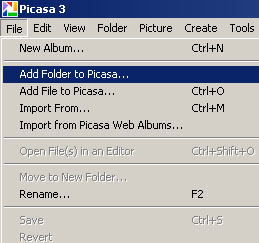
Go to File -> Add Folder to Picasa
disable folder scanning, add folder to picasa
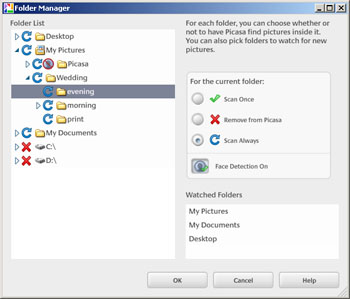
Folder manager will pop up and now you can select which folder to perform the scanning whenever picasa start.
To cancel scan for a folder, just Highlight the folder name and click “Remove from Picasa” and u’ll see the folder will be mark by a red cross. and this folder will not be scan by picasa from now on.
picasa stop folder scanning, picasa stop scan first time

Thursday, January 13, 2011

What is Google Search History? How to delete it from your account?

Many of the Internet users are confused with the two similar terms 'Internet browsing history' and 'Google search history'. The Internet browse history will be saved on your web browser and can be viewed by pressing [Ctrl] + [H] buttons together. Google Search history is the record of google searches you have made while you are logged in your google account. Internet browsing history will be deleted by clearing the saved history in your browser but google search history will remain. To see and delete google search history, you need to log on to your google account.

Steps to view your google search history


To see your google search history for a particular google account follow the steps below.

1. Log on to respective google account

2. Click on google account settings

3. Click on web history


Now the google search history page will be displayed.


How to see google search history for a google account
Some times you may prompted to re-login to your account to see this page.


Steps to remove google search history from your account


To delete the google search history follow the steps below.

1. Click on Remove items

2. Now check the items you need to remove and press Remove button.


Now google search history will be successfully removed from your account.

Coming Soon: 16 MP Camera in Smart Phone


If you look at the batches of new cell phones Japan’s leading mobile carriers have been presenting in recent months, you’ll notice the high-quality cameras some of the models have. And now major Japanese chip maker Renesas (which merged with NEC last year) is even promising [JP] 16MP cameras in future handsets.

The company claims its new image-processing system chip, the CE150, will make it possible to produce 16MP phone cameras for the first time, up from the maximum 13MP that are currently available. Renesas says the new chip paves the way to five times faster continuous shots, too.

Users will also be able to shoot full HD video (Renesas unveiled a full HD video processor for cell phone cameras as early as December 2008).

The chip will be mass-produced as early a March, with Renesas planning to churn out 1 million units monthly. Sample units are already available for $48 apiece.

Wednesday, January 12, 2011

HOW TO VIEW PASSWORDS BEHIND ASTERISKS ??


Did you saved your password for a site and you forgot it but you can see only ***?

Fortunately it is very easy to see your password.
How??? I will tell you how to Get that!!

~~::STEPS::~~
  1. Copy the JavaScript code.
  2. Open the site in a new browser window or tab.
  3. When you see the asterisks **** appear then paste the below JAVA code in the address bar and hit enter.
You should now see your forgotten password...!! Isn't that Amazing???

The JavaScript Code is only for Blog Members.
To get the script Follow the Blog ->write your e-mail id in comments.
You will be mailed the JavaScrpit Code.
If already a follower Sign In from Follow Section & write the e-mail id in comments.

Tuesday, January 11, 2011

Samsung develops DDR4 Ram (memory)


DDR3 has just picked up from where DDR2 left. It’s going big and fast and cheap too, which the public needs. However, Samsung has not been chillaxing behind, as the firm has made announcement of a DDR4 DRAM stick that can perform read and write operations using up to 40 percent less power than the old/current DDR3 stuff.

Bandwidth maxes out at 2.13Gbps at 1.2V, while Pseudo Open Drain technology assists in minimizing the battery impact. Over time, Samsung projects the new DRAM modules will hit 4Gbps speeds. It’s working away with server makers right now in order to achieve JEDEC certification, but the target market will clearly be laptops and other mobile devices, where energy-frugal memory like this would best be appreciated.

While they may be getting JEDEC certification this can actually take years to go into mainstream so such announcement will not bother the market of DDR3 in anyway actually. Remember back when DDR3 was announced, it took quite some time to land too. But this DDR4 will be great for server market, where the 40 percent less power consumption will be very obvious when it comes to huge memory.
Newer Posts Older Posts Home